Graphical VMs and OCR
Let's test something with optical character recognition (OCR) in a graphical VM.
For more general information about screenshots and OCR refer to the features section
Run this example test yourself
To run this test directly from the example repository, run:
In this scenario, we define a machine server that serves the standard Apache HTTP server "It works!" page.
On the second machine, client, we run Mozilla Firefox to display this page and test if the text is really visible on the graphical desktop.
In the end, we perform a screenshot:
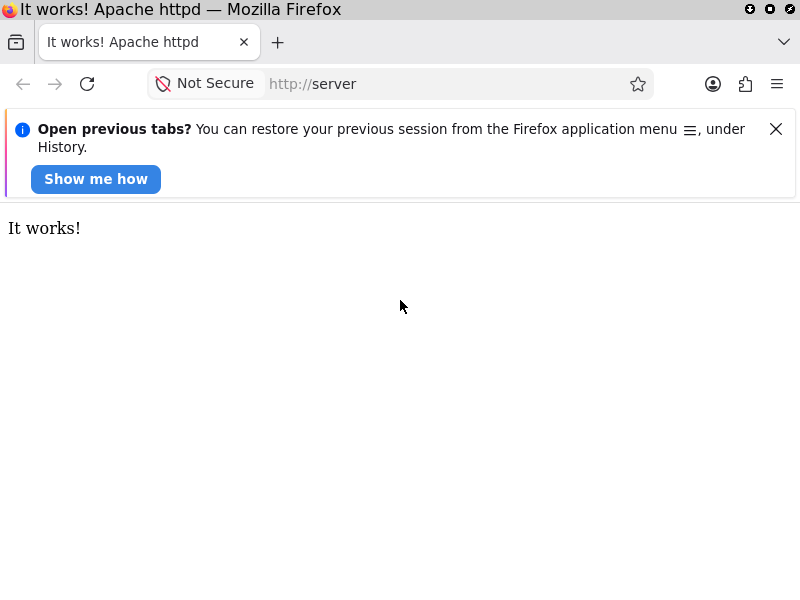
{
  name = "Browser test";
  globalTimeout = 500;

  enableOCR = true; # (1)

  nodes = {
    server = {
      services.httpd.enable = true;
      networking.firewall.allowedTCPPorts = [ 80 ];
    };
    client =
      { pkgs, modulesPath, ... }:
      {
        imports = [
          (modulesPath + "/../tests/common/x11.nix") # (2)
        ];

        programs.firefox.enable = true;

        environment.systemPackages = [
          pkgs.xdotool
        ];

        virtualisation.resolution = {
          # (3)
          x = 800;
          y = 600;
        };
      };
  };

  testScript = ''
    start_all()

    server.systemctl("start network-online.target")
    client.systemctl("start network-online.target")
    server.wait_for_unit("network-online.target")
    client.wait_for_unit("network-online.target")

    server.succeed("ping -c 1 client")
    client.succeed("ping -c 1 server")

    client.wait_for_x()

    client.screenshot("empty-icewm-desktop")

    with subtest("open and close firefox"):
      client.succeed("xterm -e 'firefox about:welcome' >&2 &")
      client.wait_for_window("Firefox")
      client.sleep(20) # new annoying welcome screen with animation
      client.succeed("xdotool key ctrl+q")
      client.wait_for_text(".uit .irefox")
      client.succeed("xdotool key space")
      client.sleep(2)

    with subtest("open website on server"):
      client.succeed("xterm -e 'firefox http://server' >&2 &")
      client.wait_for_window("Firefox")
      client.sleep(2)
      client.screenshot("it-works")

      screen_content = client.get_screen_text()
      t.assertIn("It works!", screen_content, "It works! page is on screen")
  '';
}
-
Enabling OCR
This setting adds
tesseractandimagemagickto the test driver closure. It is not enabled by default to reduce the closure for non-graphical tests, which are the majority. -
Configuring the desktop
This profile is commonly used among graphical tests in nixpkgs and configures a small desktop environment with auto login.
Importing this file is not mandatory - we can always configure this ourselves.
-
Resolution settings
We reduce the display resolution to result in fewer pixels, which in turn reduces the resource usage of the Tesseract OCR analysis.
We use the following specialized graphical machine methods on the client:
| Method | Description |
|---|---|
client.wait_for_x() |
Blockingly wait for the X server to become available |
client.wait_for_window(<string: window title>) |
Blockingly wait for a window to show up |
client.screenshot(<string: image base name>) |
Create a plain screenshot and store it in the output folder of the test derivation |
client.get_screen_text() |
Perform OCR on a fresh screenshot and return all recognized text snippets as a string |
client.wait_for_text(<regex: text to wait for>) |
Blockingly wait for a text snippet to appear on the screen |
This list is not complete. For more details and methods, refer to the official manual.